
Guides
How to Check File Size Before Uploading Files Online
Learn how to check file size before uploading files to email platforms, CMS systems, cloud storage, APIs, and messaging apps. Explore browser-native payload analysis, upload compatibility checks, transfer estimates, and file optimization workflows with SHRTX.
How to Check File Size Before Uploading Files Online
Learn how to check file size before uploading files to email platforms, CMS systems, cloud storage, APIs, and messaging apps. Explore browser-native payload analysis, upload compatibility checks, transfer estimates, and file optimization workflows with SHRTX.
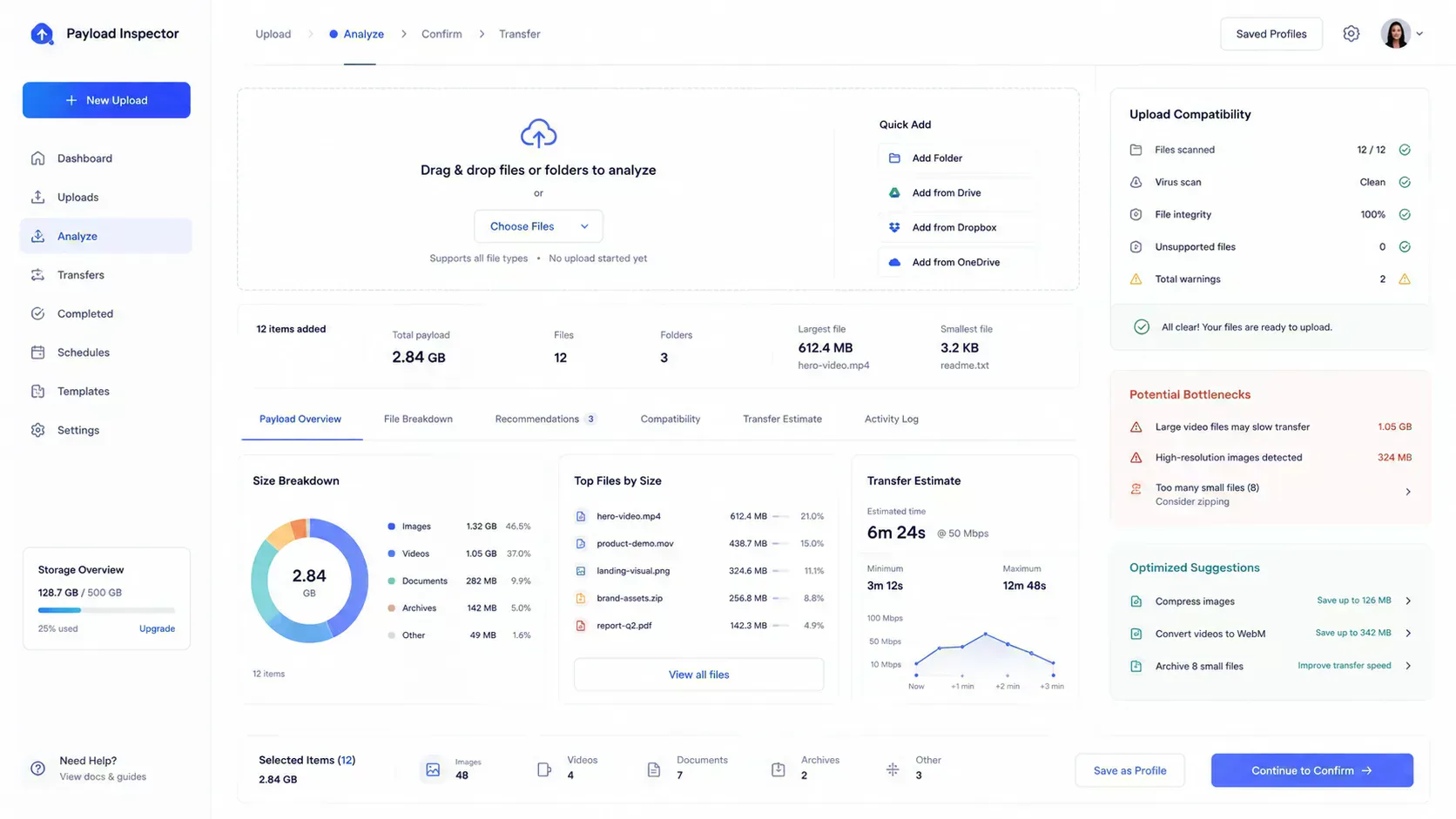
Most upload problems do not announce themselves early. An email attachment looks normal until Gmail refuses it. A CMS image upload works in staging but fails on production hosting. A client portal accepts one PDF, then rejects the next because a scan is larger than expected. A mobile user tries to send a media file over a weak connection and watches the upload restart.
These are not storage problems. They are upload payload problems. The file exists on your device, but the destination workflow has limits, transfer conditions, encoding overhead, and practical usability constraints.
Checking file size before upload prevents workflow failure. A browser-native File Size Analyzer helps by inspecting selected files locally, comparing batch payloads, identifying the largest contributors, checking common upload thresholds, and estimating transfer impact before the files leave your device.
Quick Answer
To check file size online without uploading the file to a server, select the file in a browser-native file size checker. The browser can read local metadata, calculate total payload size, compare files in a batch, group them by type, and estimate whether the upload may exceed common platform limits.
Why File Size Problems Happen More Often Today
Modern workflows move more files than older web forms expected. Product teams share dashboard screenshots, creators upload images, support teams request PDFs, developers test API payloads, and marketers publish asset batches to CMS systems.
At the same time, source files have become heavier. Phone cameras create large JPEG and HEIC files. Design tools export dense PNG screenshots. PDF scanners produce image-heavy documents. Analytics dashboards generate wide screenshots that look small on screen but carry large payloads.
This creates a mismatch. The file may be valid, but the upload flow may not be ready for it. A large PNG can be too heavy for email. A batch of images may look harmless one by one, but become a large total upload.
That is why file size checking should happen before upload, not after a failed transfer.
Why Upload Payload Size Matters
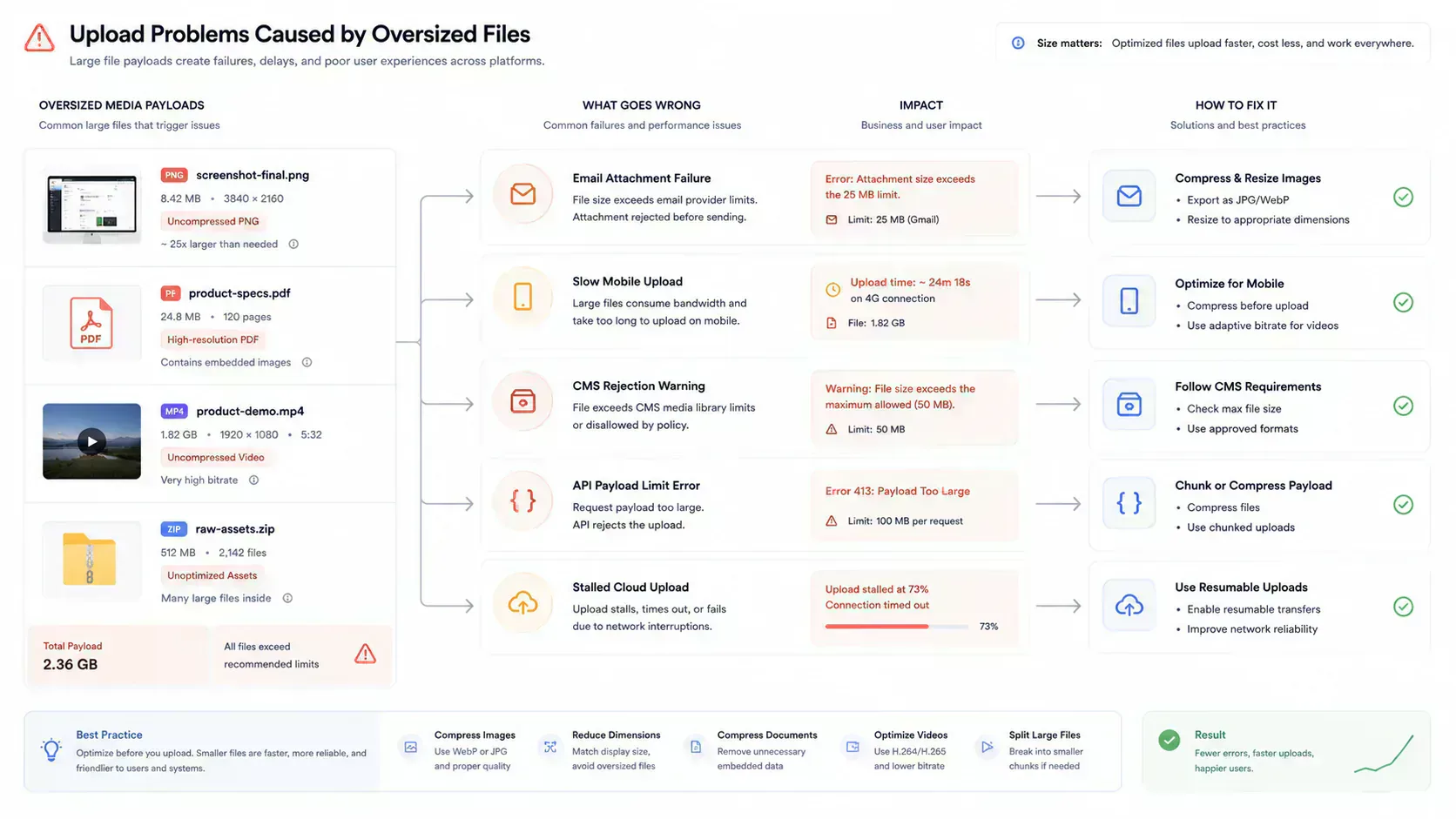
File size affects more than disk space. In upload workflows, payload size determines whether a file can move through the system at all.
Large uploads create several practical risks:
- The destination platform may reject the file.
- The upload may time out on slow connections.
- The browser or app may restart the transfer after a network drop.
- Mobile users may consume too much data.
- Support or CMS teams may waste time compressing files after rejection.
- Developers may debug API failures that are really payload limit failures.
Payload size also affects perception. A slow upload makes a product feel unreliable even when the backend is working correctly. For teams that handle content, frontend assets, dashboards, PDFs, and support files, payload awareness is operational hygiene.
Common Upload Limits Across Modern Platforms
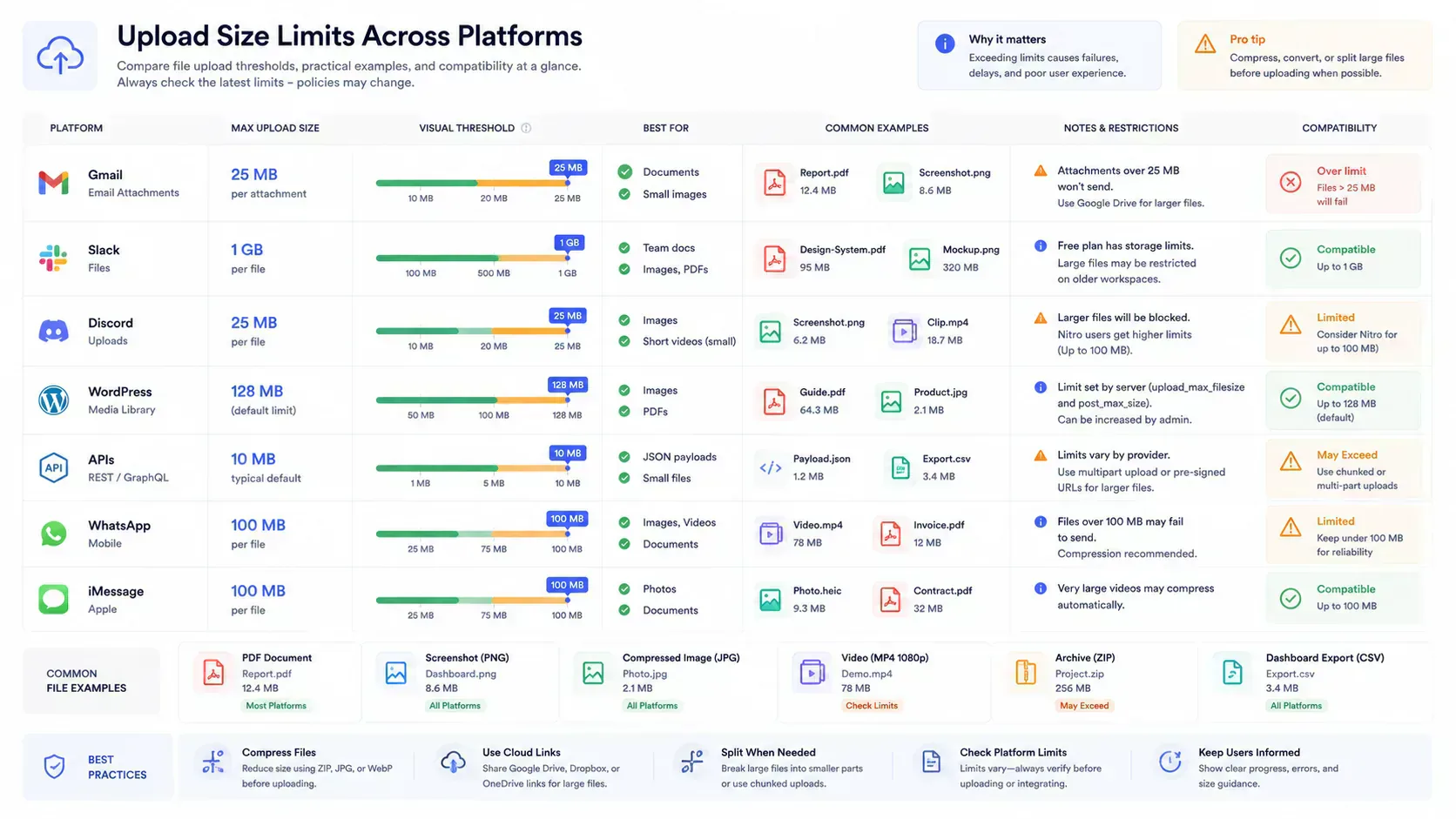
Upload limits vary by product, plan, account type, browser behavior, and administrator settings. Treat thresholds as practical guidance, not absolute promises.
Common patterns include:
- Email platforms often limit attachment payloads and may apply encoding overhead.
- Messaging apps can enforce smaller limits for free accounts or mobile media flows.
- CMS platforms often inherit server or PHP upload limits.
- Support portals may use conservative request size thresholds.
- APIs often enforce request payload limits to protect infrastructure.
- Cloud storage may accept large files but still struggle on weak connections.
The important distinction is total payload versus per-file size. Some destinations care about the full batch. Others care about the largest individual file.
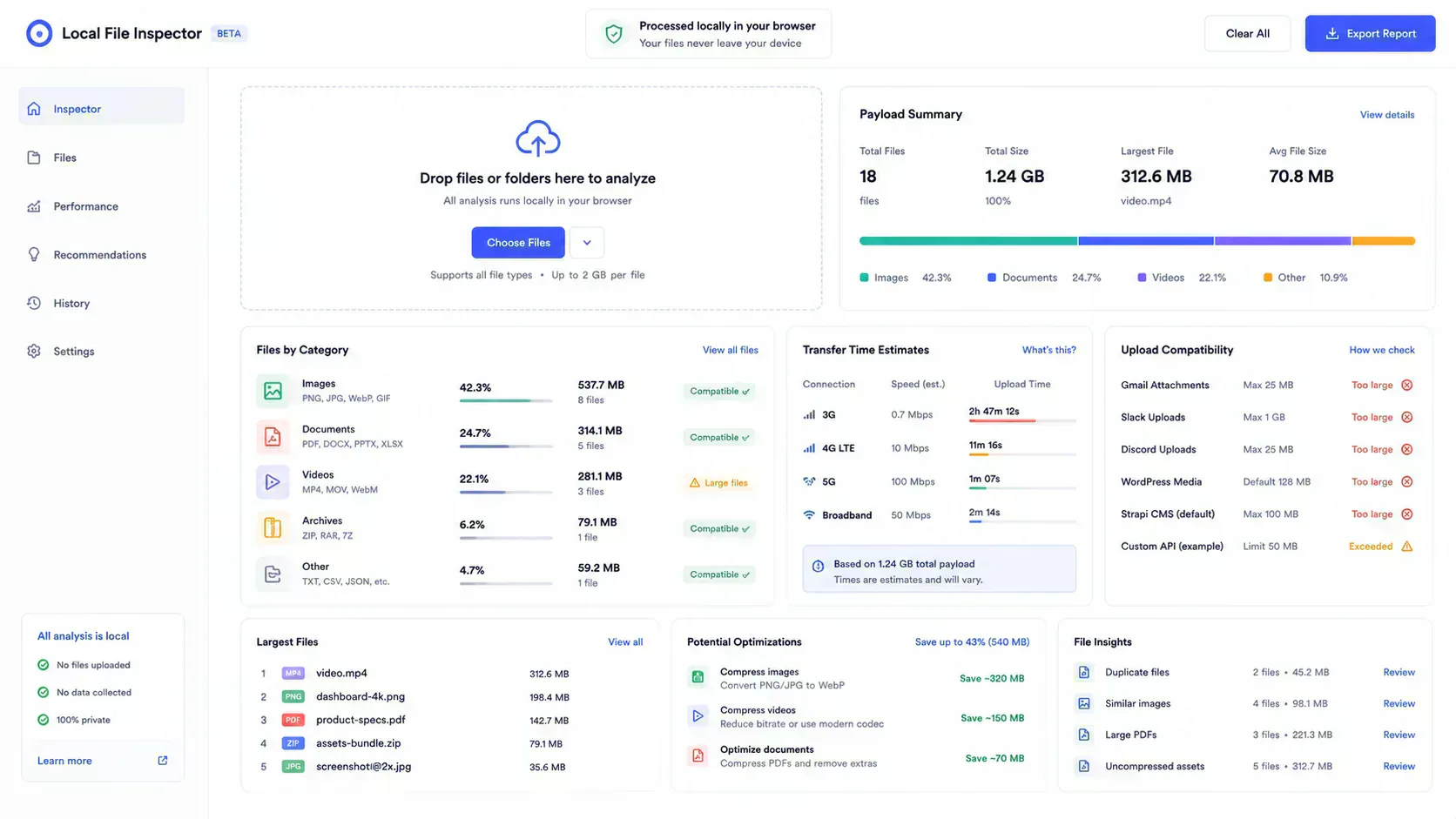
The File Size Analyzer is designed around that distinction. It can compare the total selected payload and the largest file against common attachment, chat, CMS, and API-style thresholds.
Why File Size Is More Than Storage
A basic file size check answers one question: how large is this file. Upload diagnostics answer a more useful set of questions.
For example:
- Which file is the largest contributor.
- What percentage of the payload comes from images.
- Whether PNG, PDF, archive, or video files dominate the batch.
- Whether the median file is reasonable or one file is distorting the upload.
- Whether duplicate-size files may be repeated exports.
- Whether the payload is suitable for slower mobile networks.
Optimization work should follow the bottleneck. If one PNG contributes most of the upload, compressing every small icon is wasted effort. If PDFs dominate the payload, image conversion will not solve the problem.
That is the practical value of payload analysis. It shows where the upload is likely to fail before the team spends time retrying the same file.
How Browser-Native File Size Inspection Works
A browser-native file size checker can inspect selected files using metadata exposed by the browser. It can read file names, sizes, MIME types when available, extensions, and last modified signals without requiring a server upload.
In a local-first workflow, the file stays on the device while the browser calculates:
- Total payload size.
- Largest and smallest files.
- Average and median file size.
- Category and extension grouping.
- Payload percentage per file.
- Upload compatibility signals.
- Transfer time estimates.
This is different from uploading a file to a remote service for inspection. Browser-local analysis is faster for metadata checks and better aligned with privacy-sensitive workflows.
For the file size workflow itself, local inspection avoids sending files away just to learn how heavy they are.
Understanding Payload Composition
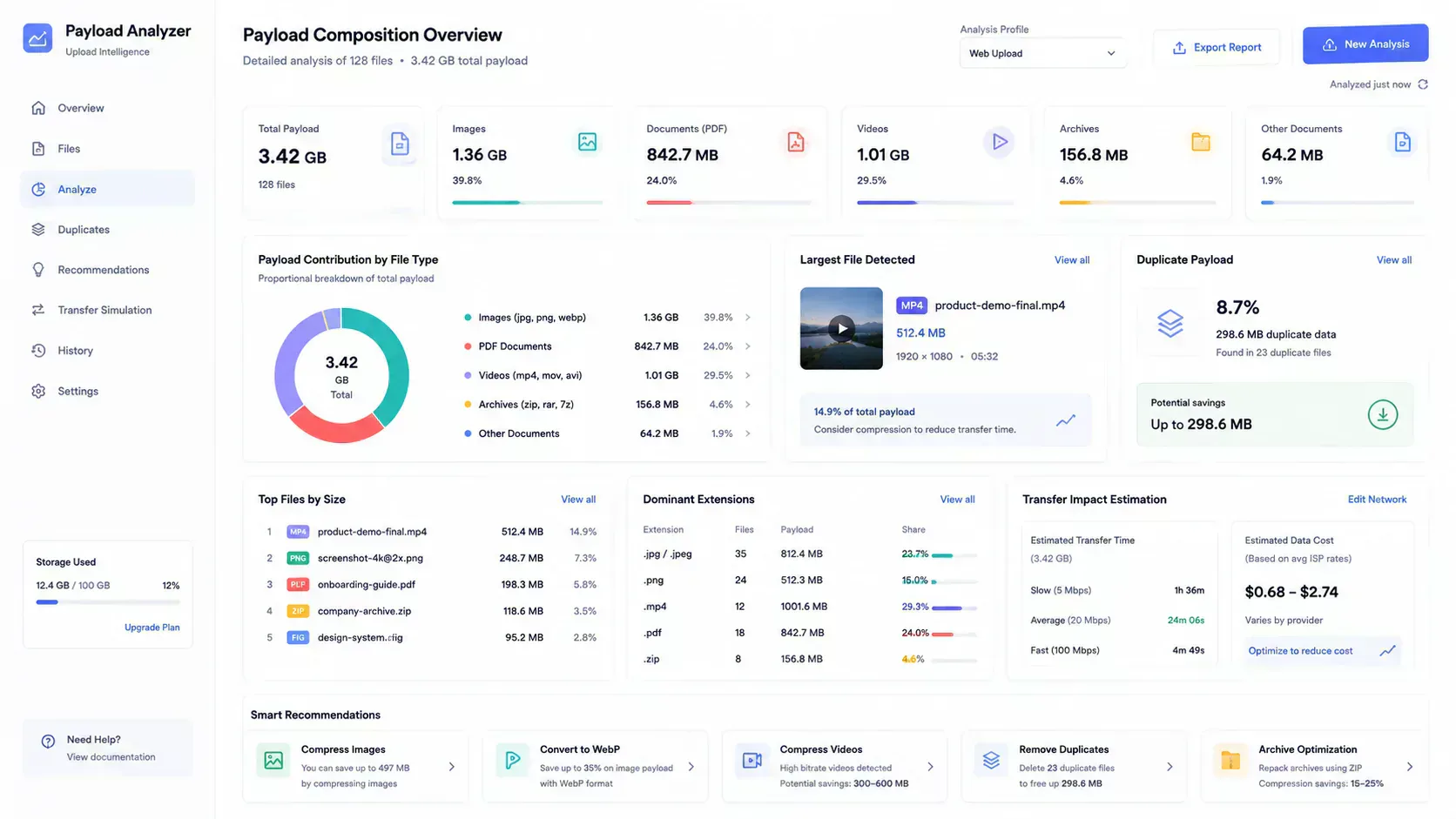
Payload composition explains where upload weight comes from. A batch may include images, documents, archives, video, audio, and other file types. The total size is useful, but the breakdown tells you what to fix.
Images are common offenders because exported screenshots and high-resolution photos can become large quickly. PNG is especially common in dashboard, design, and product workflows because it preserves crisp UI details. That can be useful, but a PNG export may be much larger than a WebP or compressed JPEG alternative.
PDFs can also become unexpectedly large. A document that looks like text may actually contain scanned page images. A presentation exported as PDF may include high-resolution embedded media. A client form may reject it even though the file opens normally on your device.
Good upload diagnostics show both file-level and group-level payload contribution. That is how you find whether the issue is one file, one extension, or one category.
Batch Upload Analysis and Bottleneck Detection
Single-file checks are useful, but many real workflows involve batches. A content editor uploads ten images. A support agent receives multiple PDFs. A developer tests a media API with several payloads. A marketing team hands off exported campaign assets.
Batch analysis should answer:
- What is the total upload payload.
- Which file is largest.
- How much of the total payload the largest file contributes.
- Which category or extension dominates.
- Whether the average and median file sizes are close.
- Whether duplicate-size files may indicate repeated exports.
The largest-to-smallest view prevents teams from treating every file as equal. If one file contributes most of the payload, optimization should start there.
This is where file size comparison becomes operational. Comparing the original file against an optimized version tells you whether compression or conversion helped before upload.
Transfer Speed and Mobile Upload Constraints
Upload time is often worse than download time. Many home, office, and mobile connections have slower upload bandwidth than download bandwidth. That difference matters for file sharing, CMS publishing, client portals, and media forms.
A payload that feels acceptable on broadband may be painful on mobile. A 40 MB batch might upload quickly from an office connection but take long enough on slower mobile networks to create retries or stalled progress bars.
Transfer estimates do not need to be perfect to be useful. If the estimated upload time on a slower connection is high, the team can compress, resize, split, or defer the upload.
For SaaS products and internal tools, this matters because users are not always on ideal networks. Admins approve tasks from laptops, operators use tablets, field teams upload photos from mobile, and customers submit documents from varied devices.
Why Large Uploads Break Modern Workflows
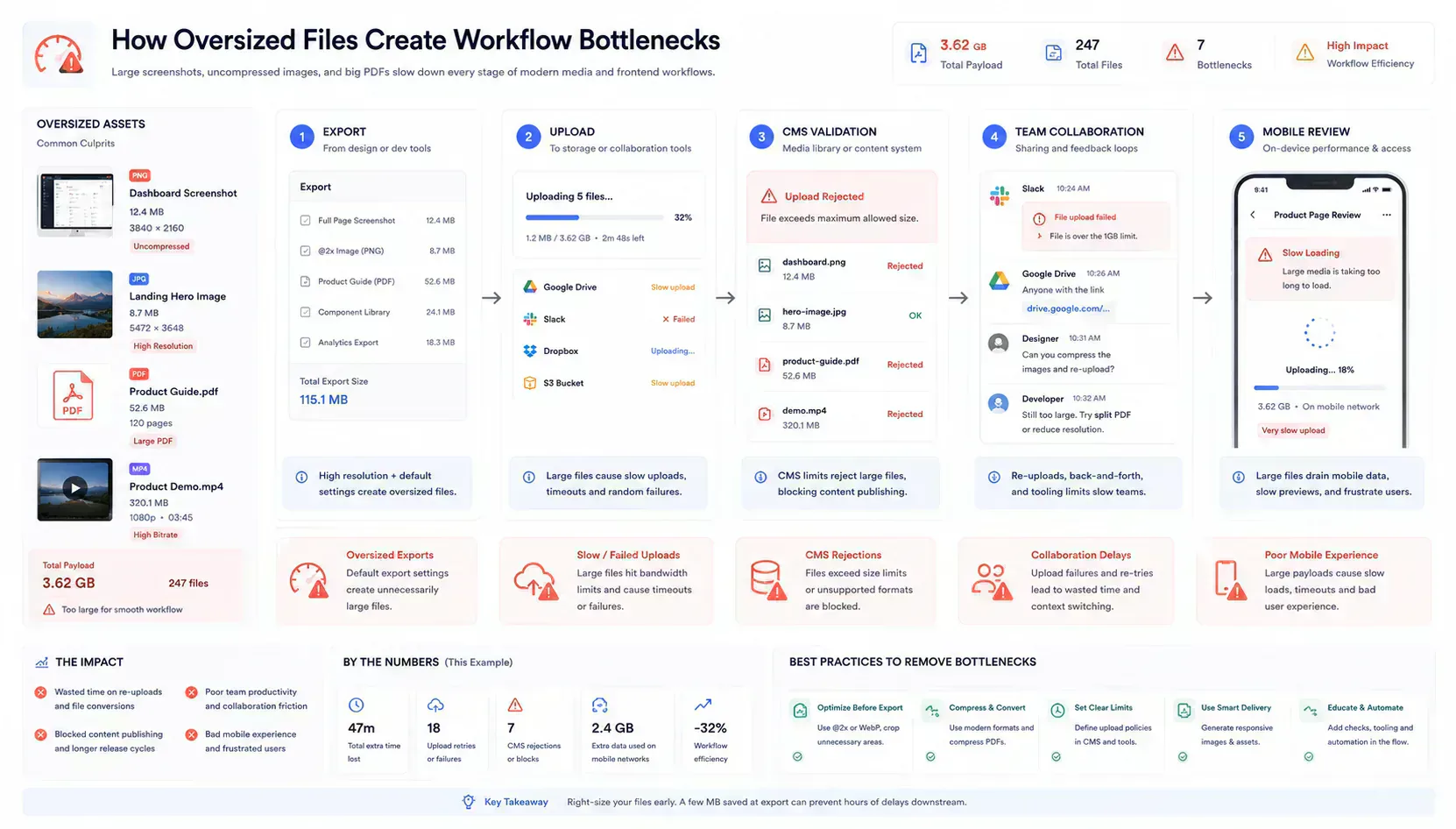
Large uploads break workflows in ways that look unrelated at first. A designer exports a dashboard screenshot as PNG, then a CMS rejects it. A customer sends a scanned PDF to support, then the portal times out. A developer tests an API with a media file, then treats a payload limit as a backend bug.
The friction compounds during live handoffs. A CMS image batch delays a launch, a Slack upload blocks the thread, or a mobile onboarding upload restarts from a weak connection.
The same pattern appears across teams:
- Mobile bandwidth makes retries expensive.
- Large attachments interrupt communication.
- Media batches slow publishing.
- Oversized screenshots create page performance issues.
- API uploads fail when request limits are crossed.
- CMS editors lose time compressing assets after rejection.
The underlying problem is usually not that the file is unusable. It is that the payload is wrong for the destination workflow. A quick check before upload can identify whether the bottleneck is size, type, batch total, largest file, image dimensions, PDF weight, or network transfer risk.
Common File Size Mistakes in Media Workflows
Media workflows create predictable file size problems.
The first is oversized screenshots. Product teams often capture dashboard and analytics views at high resolution, then use those screenshots inside landing pages, docs, or app previews.
The second is dimension mismatch. A card may display an image at 600 pixels wide while the actual image is several thousand pixels wide. Use Image Dimension Checker before publishing to confirm whether dimensions match the real display context.
The third is compression without comparison. Compressing an image without comparing before and after payload can create either low-quality output or minimal savings. Use Image Compressor when image payloads are large and compare results before publishing.
The fourth is using PNG when WebP is more appropriate. UI screenshots, marketing graphics, and web assets may become lighter after conversion with Image to WebP Converter.
The fifth is metadata drift. Photos can contain EXIF metadata that is not needed for sharing or publishing. Use EXIF Remover when metadata cleanup is part of the media handoff.
The sixth is oversized PDFs. If a PDF is too large for email, support portals, or forms, PDF Compressor belongs in the workflow before the next upload attempt.
How Frontend and Content Teams Optimize Upload Workflows
Frontend and content teams benefit from treating file size checks as part of the publishing pipeline.
A practical workflow looks like this:
- Select the files planned for upload.
- Check total payload and largest contributors with File Size Analyzer.
- Identify whether images, PDFs, archives, or another category dominate the batch.
- Validate image dimensions before optimization.
- Compress or convert only the files that justify it.
- Normalize filenames before upload or repository handoff.
- Recheck the optimized batch before publishing.
This avoids random optimization. If images dominate, use image tools. If PDFs dominate, use PDF compression. If filenames are inconsistent or duplicate-prone, use Filename Normalizer before the batch enters a CMS, repo, or client portal.
For dashboard and analytics screenshots, this workflow is especially useful. A single oversized UI capture can slow a landing page, fail a CMS upload, or inflate documentation payload.
Browser-Local Privacy and Why It Matters
File size inspection does not need a remote upload. For metadata-level analysis, the browser can read local file properties and calculate payload diagnostics in the session.
That matters for files that may contain customer records, internal screenshots, invoices, contracts, product plans, or support documents.
Browser-local processing also keeps the workflow fast. You can select a batch, inspect upload risk, compare file sizes, and decide whether to optimize without waiting for a remote step.
The important boundary is clear: local file size inspection helps you decide what to upload. It is not a storage scan, disk cleanup process, or filesystem crawler. It stays focused on selected upload candidates and the workflow they are about to enter.
Final Takeaway
Checking file size before upload is not a cosmetic step. It is a reliability check for modern file workflows.
When teams understand payload size, composition, transfer conditions, and destination limits, uploads become easier to plan. Email attachments fail less often. CMS media workflows become cleaner. Mobile transfers become more realistic. Frontend and content teams stop optimizing every file blindly and focus on the files that actually create bottlenecks.
The operational lesson is simple. A file is not ready just because it exists locally. It is ready when its size, format, dimensions, metadata, and transfer profile fit the destination workflow. Browser-native inspection makes that check light enough to happen before failure.
Tools Referenced By Topic
File Size Analyzer
Visualize and compare multiple file sizes with network transfer time estimations.
Image Dimension Checker
Bulk check the width, height, and megapixel count of multiple images instantly.
Browser Feature Detector
Audit your browsers support for modern web APIs like WebGL, LocalStorage, and more.
Related Reading
May 25, 2026 • 19 min
Modern Bento Grid Layouts for SaaS Dashboards and AI Interfaces
Learn how modern SaaS products, AI interfaces, and analytics dashboards use Bento Grid systems to create modular responsive layouts. Explore frontend workflow strategies, Tailwind composition techniques, and browser-native Bento planning with SHRTX.
May 17, 2026 • 14 min
WebP Optimization and Modern Image Delivery Guide
Learn WebP workflows for faster sites with local processing, visual checks, responsive delivery, and Core Web Vitals guidance.
May 19, 2026 • 13 min
Generate OpenPGP Keys Locally with a Browser-Native PGP Key Generator
Learn how to generate OpenPGP keys locally in your browser, choose Ed25519 or RSA 4096, protect private keys, verify fingerprints, and manage revocation.