
Guides
Generate OpenPGP Keys Locally with a Browser-Native PGP Key Generator
Learn how to generate OpenPGP keys locally in your browser, choose Ed25519 or RSA 4096, protect private keys, verify fingerprints, and manage revocation.
Generate OpenPGP Keys Locally with a Browser-Native PGP Key Generator
Learn how to generate OpenPGP keys locally in your browser, choose Ed25519 or RSA 4096, protect private keys, verify fingerprints, and manage revocation.
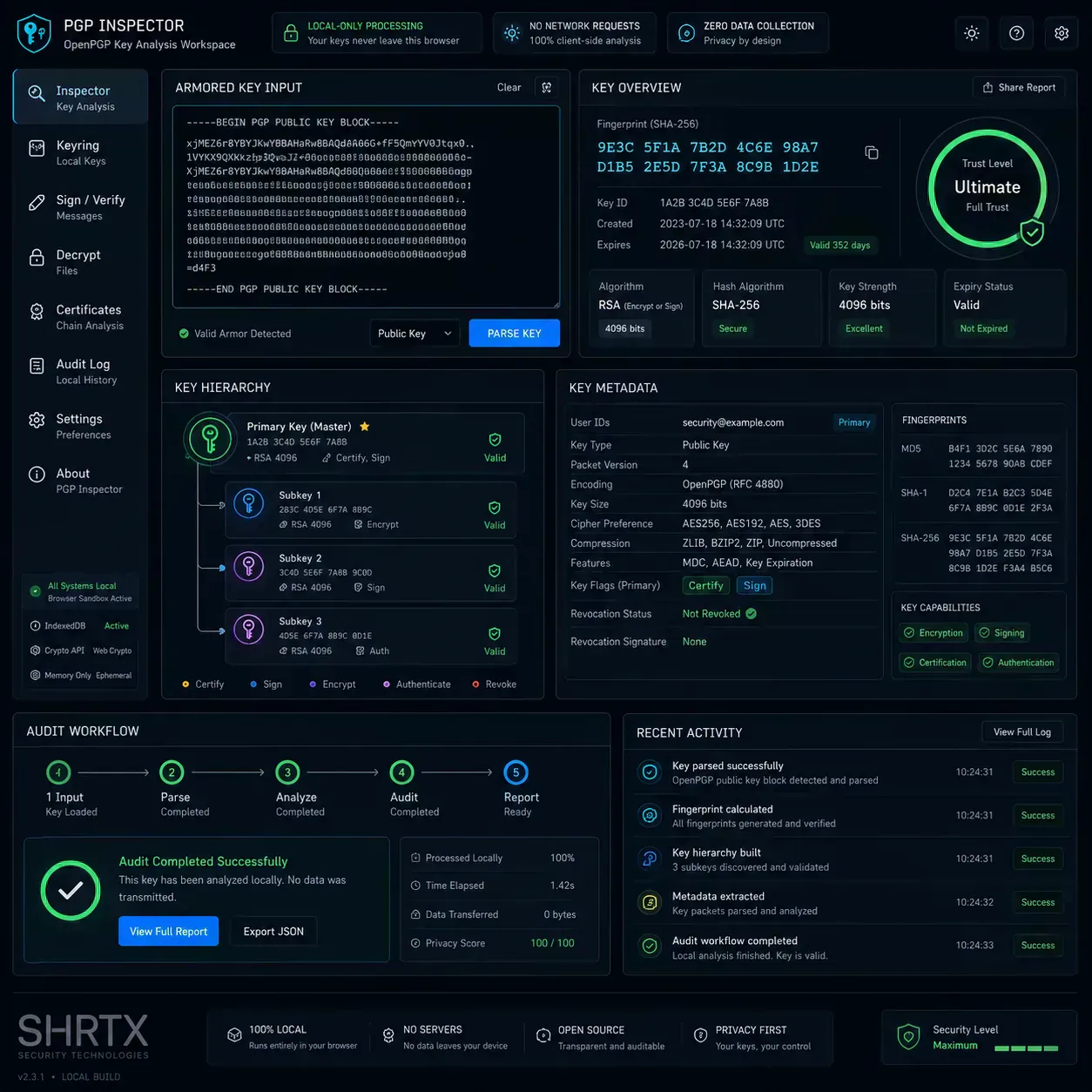
An OpenPGP key pair gives you two things: a public key you can share and a private key you must protect. Together, they let people encrypt messages for you, verify your signatures, and confirm that a file or message came from the expected identity.
The safest online key generation workflow is simple: create the key locally, keep the private key on your device, and never send the passphrase or private key material to a server. That is the privacy baseline behind the PGP Key Generator. It creates OpenPGP keypairs in the browser so you can avoid terminal setup while still keeping the sensitive work on-device.
This guide explains what a PGP key is, why local generation matters, how to choose between Ed25519, Curve25519, and RSA 4096, and how to manage fingerprints, backups, revocation, and audits after generation.
Quick Answer
Use a local-first PGP Key Generator when you need to create a PGP keypair without installing GPG first. Choose Ed25519 for modern signing and identity workflows, use Curve25519-capable encryption subkeys for efficient encryption, and choose RSA 4096 when you need older compatibility.
After generation:
- Save the private key offline.
- Export the public key for sharing.
- Store the revocation certificate separately.
- Verify the public key fingerprint with a PGP Key Viewer.
- Use a long passphrase that is not reused anywhere else.
What Is a PGP Key?
A PGP key is a cryptographic identity made from public-key cryptography. It normally includes identity metadata, one or more public keys, matching private key material, self-signatures, expiration settings, capabilities, and sometimes subkeys for encryption, signing, or authentication.
The two key parts have different jobs:
- Public key: Share this with contacts, publish it on a profile, or attach it to documentation. Others use it to encrypt messages for you or verify signatures you create.
- Private key: Keep this secret. It decrypts messages sent to you and creates signatures that prove a message, commit, or file came from your key.
The public key is safe to distribute. The private key is not. If someone gets your private key and passphrase, they can impersonate your identity and decrypt data intended for you.
Public key  -> share with others -> encrypt to you / verify your signatures
Private key -> keep secret       -> decrypt messages / create signatures
Who Should Use PGP?
PGP is most useful when you need a portable cryptographic identity that works across tools, teams, and long-running workflows.
- Developers and maintainers who sign commits, tags, releases, or package artifacts.
- Privacy-conscious users who want encrypted email or file exchange without relying only on a platform account.
- Security researchers who publish advisories, keys, signatures, and verifiable contact channels.
- Open-source projects that distribute signed binaries, checksums, or release archives.
- Teams handling sensitive backups that need encrypted files before cloud storage or transfer.
You do not need to use PGP for every security task. It is strongest when identity, encryption, signatures, or long-term verification matter.
When You May Not Need PGP
PGP is powerful, but it is not always the simplest answer.
If you only need to confirm that a file has not changed, a cryptographic hash may be enough. Use Hash Generator for text or File Hash Generator for local files.
If you only need to share a short secret with one person, a password manager, encrypted messaging app, or secure note workflow may be easier to operate correctly.
If you need team-wide access control, audit logs, and centralized recovery, a managed secrets platform may fit better than a personal PGP key. Use PGP when the job calls for portable encryption, signing, and independent verification.
Why Generate OpenPGP Keys Locally?
Key generation is a trust problem before it is a convenience problem. If a server generates your private key, you have to trust that the server did not store it, log it, cache it, expose it to analytics, or leak it through infrastructure.
Local generation avoids that class of risk. In an in-browser workflow:
- The key is generated inside your browser session.
- The private key is not uploaded for server-side processing.
- The passphrase stays on your device.
- Exported key files are created locally for download.
- You can inspect the generated public key immediately before using it.
This does not remove every security responsibility. Your browser, device, extensions, clipboard, and storage practices still matter. But it gives you the right baseline: the site should not need your private key to produce your private key.
Identity details + algorithm + passphrase
        -> local key generation
        -> public key for sharing
        -> encrypted private key for offline storage
        -> revocation certificate for emergency retirement
What You Can Do With a PGP Key
OpenPGP keys are useful anywhere you need confidentiality, integrity, or identity verification.
- Encrypt email and messages: Share your public key so others can send encrypted content that only your private key can read.
- Sign Git commits and releases: Use a signing key to prove that commits, tags, or release artifacts came from your identity.
- Verify software downloads: Check detached signatures before trusting binaries, archives, or update files.
- Protect backups: Encrypt sensitive archives before placing them in cloud storage or shared drives.
- Publish a durable security identity: Maintain a public key fingerprint that other people can verify out-of-band.
If you need only file integrity, a hash may be enough. If you need identity and signatures, use OpenPGP.
OpenPGP Algorithm Choices
Modern OpenPGP tools usually offer elliptic-curve keys and RSA. The right choice depends on your compatibility needs.
| Option | Best for | Tradeoff |
|---|---|---|
| Ed25519 | Modern identity, signing, and certification workflows. | Fast, compact, and recommended for most new OpenPGP identities. |
| Curve25519 / X25519 | Modern encryption subkeys and efficient message encryption. | Strong fit for current clients, but older tools may need compatibility checks. |
| RSA 4096 | Legacy interoperability, older enterprise systems, and broad fallback support. | Larger keys and slower operations compared with modern elliptic-curve options. |
For most new keys, start with the modern elliptic-curve profile. Use RSA 4096 when you know the recipient environment, compliance process, or email client stack requires it.
RSA vs ECC Explained Simply
RSA and elliptic-curve cryptography both create a public key that can be shared and a private key that must stay secret. They do that with different math.
RSA depends on the difficulty of factoring a very large number back into the two prime numbers used to create it. Larger RSA keys increase the work needed to attack that relationship, which is why RSA 4096 is common for long-lived compatibility keys.
Elliptic-curve cryptography uses operations on mathematical curves. Curves such as Ed25519 and Curve25519 provide strong security with much smaller keys. That means faster operations, smaller armored output, and better usability in browser and mobile workflows.
The practical version:
- Choose Ed25519 for a modern signing-focused OpenPGP identity.
- Use Curve25519 / X25519 encryption support where your OpenPGP tool provides it.
- Choose RSA 4096 when compatibility matters more than compactness.
How to Generate an OpenPGP Key Locally
Use this workflow when creating a new operational key with the PGP Key Generator.
-
Open the local generator workspace. Start from the PGP Key Generator and confirm the page clearly states that generation happens locally in the browser.
-
Choose an algorithm profile. Use Ed25519 for the default modern profile. Choose RSA 4096 when you need broad legacy compatibility.
-
Enter identity details. Add your name, email address, and optional comment. This becomes part of the OpenPGP User ID, so use an identity you are comfortable sharing publicly.
-
Set an expiration date. One or two years is a healthy default for operational keys. You can extend expiration later if you still control the private key.
-
Create a strong passphrase. Use a long, unique passphrase. The Passphrase Generator can help create memorable phrases when you need a safer starting point.
-
Generate the keypair. The workspace emits an armored public key and an encrypted private key.
-
Download and separate the outputs. Share the public key. Store the private key in an offline backup location.
-
Save the revocation certificate. Keep it offline and separate from the private key.
-
Audit the generated public key. Open the public key in the PGP Key Viewer and verify fingerprint, algorithm, expiration, user ID, and subkey capabilities.
The important rule: never paste a private key or passphrase into an untrusted page. A PGP generator should be a local creation workspace, not a remote key custody service.
Fingerprints Matter More Than Names
Names and email addresses are easy to copy. Fingerprints are not. A PGP fingerprint is a compact representation of the public key material and is the safest way to confirm that a public key is the one you intended to use.
When sharing or importing a key:
- Compare the full fingerprint, not just the email address.
- Verify the fingerprint through a separate channel when possible.
- Check expiration and revocation status before relying on the key.
- Re-audit old public keys before using them for sensitive encryption.
This is why SHRTX connects generation to inspection. After you create a key, the next natural step is to audit it with the PGP Key Viewer before distributing it.
Generated public key
        -> inspect fingerprint
        -> check algorithm and expiration
        -> review subkey capabilities
        -> share only after the audit looks correct
Revocation Certificates
A revocation certificate is your emergency exit. If your private key is lost, stolen, or accidentally exposed, a revocation certificate lets you mark the public key as no longer trustworthy.
Store it carefully:
- Keep it offline.
- Keep it separate from your public sharing location.
- Do not publish it unless the key should be revoked.
- Back it up somewhere you can reach if your main machine is lost.
Many simple generators skip this step. That is a mistake. Serious OpenPGP lifecycle management includes generation, audit, backup, expiration, rotation, and revocation.
Healthy key -> normal use
Lost key    -> publish revocation certificate
Old key     -> rotate to a newer keypair
Exposed key -> revoke immediately and notify contacts
Private Key Storage Best Practices
The strongest algorithm will not save a poorly handled private key. Treat the private key as operational security material.
- Store the private key in an encrypted backup.
- Keep at least one offline copy.
- Do not email the private key to yourself.
- Do not upload the private key to shared drives unless it is inside a separate encrypted container.
- Do not store the passphrase next to the key file.
- Rotate operational keys periodically.
- Revoke keys that may have been exposed.
For advanced setups, consider moving daily signing or authentication subkeys to a hardware token. That is not required for every user, but it is valuable for developer signing, SSH-adjacent workflows, and teams with stricter key custody policies.
Common Mistakes to Avoid
These mistakes cause most real-world PGP failures:
- Publishing the private key instead of the public key. Public and private armored blocks look similar. Check the block header before sharing anything.
- Using no expiration. A non-expiring key can stay trusted long after you lose control of it.
- Skipping revocation. Without a revocation path, key compromise is much harder to communicate.
- Trusting an email address alone. Always compare fingerprints when identity matters.
- Reusing a weak passphrase. A private key file is only as safe as its passphrase and storage environment.
- Forgetting old backups. A rotated key does not erase private key copies sitting on old disks or cloud folders.
Technical Notes for Developers
OpenPGP is a packet format, not just one algorithm. A generated key may contain a primary key, subkeys, user IDs, self-signatures, expiration metadata, algorithm preferences, and usage flags.
Modern in-browser OpenPGP tools commonly rely on:
- Browser cryptographic randomness for secure key material generation.
- Client-side OpenPGP libraries for packet construction and armor output.
- Local memory for passphrase handling and private key encryption.
- Web APIs for file export, clipboard actions, and offline-style workflows.
Be precise with terminology. The WebCrypto API is useful for browser cryptography, but OpenPGP support usually comes from a dedicated OpenPGP implementation that builds the correct packet structures and key metadata. A professional tool should explain what runs locally without pretending the browser solves key management by itself.
GPG Import Commands
If you later move the generated key into a local GPG workflow, import the private key with:
gpg --import private.asc
Inspect the fingerprint after import:
gpg --list-keys --fingerprint your-email@example.com
Export the public key when you need to share it:
gpg --armor --export your-email@example.com > public.asc
These commands are useful for compatibility, but they do not replace the audit step. Always confirm the fingerprint and capabilities before publishing or relying on a key.
Frequently Asked Questions
Is generating a PGP key in a browser safe?
It can be safe when the tool runs locally and does not upload private key material. You still need a trustworthy device, browser, and storage process. The safest browser workflow is local-first generation with no server-side private key handling.
What is the difference between PGP and OpenPGP?
PGP originally referred to Pretty Good Privacy software. OpenPGP is the open standard used by interoperable tools such as GnuPG and modern OpenPGP libraries. In everyday search language, people often say "PGP key" when they mean an OpenPGP-compatible key.
Should I choose Ed25519 or RSA 4096?
Choose Ed25519 for most new modern keys. Choose RSA 4096 when you need older compatibility or a policy specifically requires RSA.
Can I generate a PGP key without the command line?
Yes. An in-browser generator can create an OpenPGP keypair locally and export armored public and private key files. You can later import those files into GPG if you want a command-line workflow.
What happens if I lose my private key passphrase?
There is no password reset. If the private key is encrypted with a passphrase you cannot recover, you may permanently lose access to data encrypted to that key. Keep secure backups and store recovery information carefully.
What is a PGP revocation certificate?
A revocation certificate is a signed statement that marks a key as no longer trustworthy. Generate it when you create the key, store it offline, and publish it only if the key is compromised, lost, or retired.
Should I publish my public key to a keyserver?
Only publish a public key when you are comfortable maintaining that identity long-term. Some public key directories are append-oriented, meaning old public key material may remain discoverable even after updates.
Final Takeaway
Generating OpenPGP keys locally is the right default for privacy-conscious users, developers, and teams that need practical cryptographic identity without server-side key custody. The workflow is not just "make a key." It is create, protect, audit, back up, rotate, and revoke when needed.
Start with the PGP Key Generator, verify the result with the PGP Key Viewer, and treat your private key like the root credential it is.
Tools Referenced By Topic
RSA Key Pair Generator
Generate secure RSA Public and Private key pairs locally.
PGP Key Generator
PGP Key Generator for local OpenPGP keypair creation with algorithm controls, customizable expiration, passphrase strength checks, and revocation certificates.
PGP Key Viewer
PGP Key Viewer for OpenPGP fingerprint checks, subkey analysis, packet timeline review, security inspection, and exportable local audit reports.
Related Reading
May 25, 2026 • 12 min
How to Check File Size Before Uploading Files Online
Learn how to check file size before uploading files to email platforms, CMS systems, cloud storage, APIs, and messaging apps. Explore browser-native payload analysis, upload compatibility checks, transfer estimates, and file optimization workflows with SHRTX.
May 17, 2026 • 15 min
Designing Glitch Art with Browser-Native Image Workflows
Learn databending, JPEG and PNG corruption behavior, pixel-sorting pipelines, and browser-local rendering workflows for glitch art.
May 25, 2026 • 19 min
Modern Bento Grid Layouts for SaaS Dashboards and AI Interfaces
Learn how modern SaaS products, AI interfaces, and analytics dashboards use Bento Grid systems to create modular responsive layouts. Explore frontend workflow strategies, Tailwind composition techniques, and browser-native Bento planning with SHRTX.